DRIFTZONE
Solo careerRacing
Solo run New
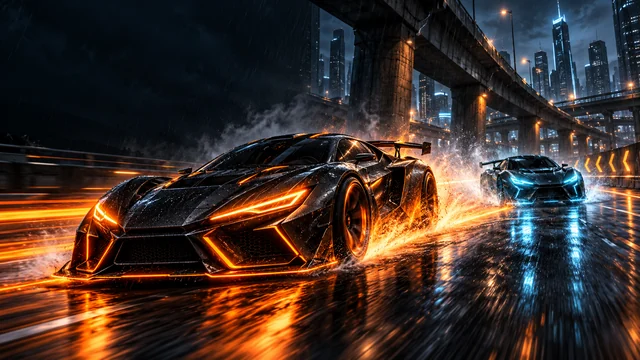
The NoChill shop groups gear by game so you can see which character or vehicle a look belongs to. Start with the game you actually play, then inspect the item’s preview and description. The available slots depend on the game. A car finish applies to the vehicle; a weapon item has its own description and equipment slot.
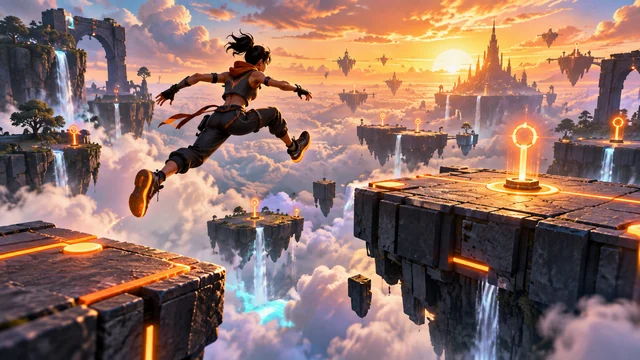
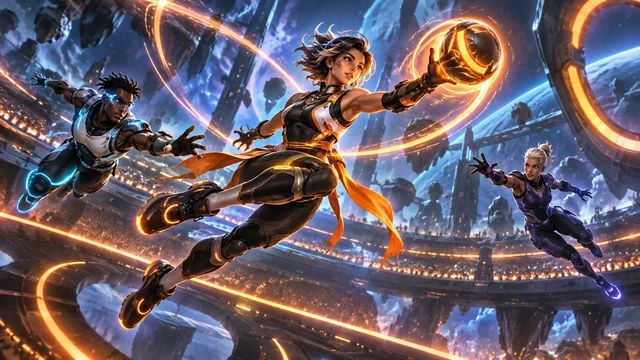
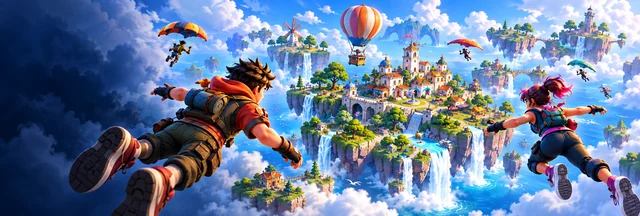
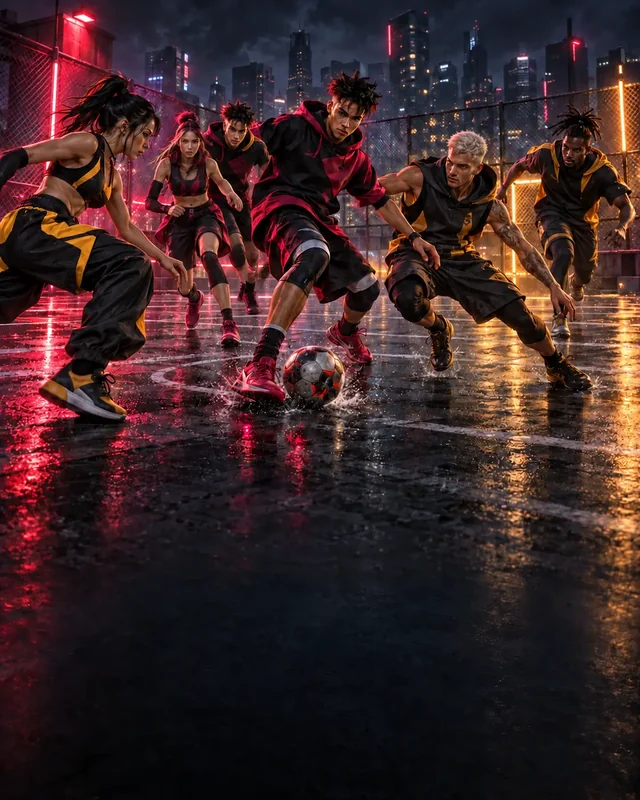
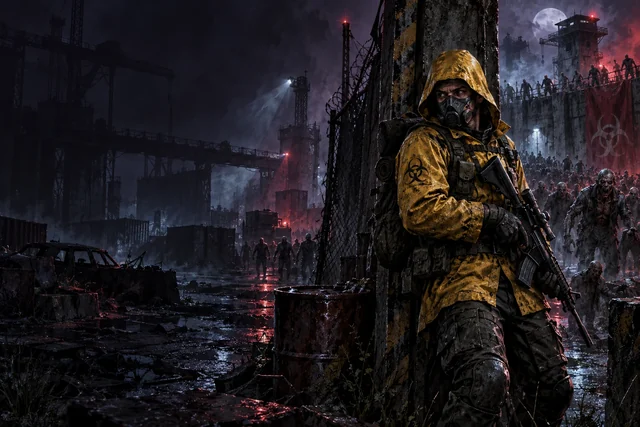
Use the part-color controls to adjust individual areas of the selected appearance. Check the preview as you make changes, especially when neighboring parts use similar colors. Save the combination to your wardrobe when you want to return to it later. These controls recolor the parts shown in the preview.
There are six collectible sticker designs. A sticker becomes available to apply after you own it. Check the selected item in the preview before saving the combination, so the sticker is applied to the appearance you intend to use.
The shop labels owned items and marks the one you have equipped. Locked rewards show the game objective needed to unlock them. Some signature appearances require completing five different rewarded missions in their game. Crew appearances require eligible completion of that game’s three online team missions. If an item uses Coins, check the displayed price and your wallet balance before choosing it. Weapon descriptions also explain their specific behavior, so read those details alongside the preview.
Choose your gear before marking yourself Ready in a friend room. Rift Escape also has campaign suits in its own menu; selecting one replaces its equipped account outfit. That makes the game menu a useful place to check an unexpected appearance change. Return to the shop when you want to select another owned item or restore default gear.